Why AI Misreads Your Screenshots: The Pixel Budget Nobody Mentions
Every vision model resizes your image to a fixed budget first. The blurred parts get filled in, not flagged. Here's the math, a script to preview what the model sees, and the Read-Back Test.
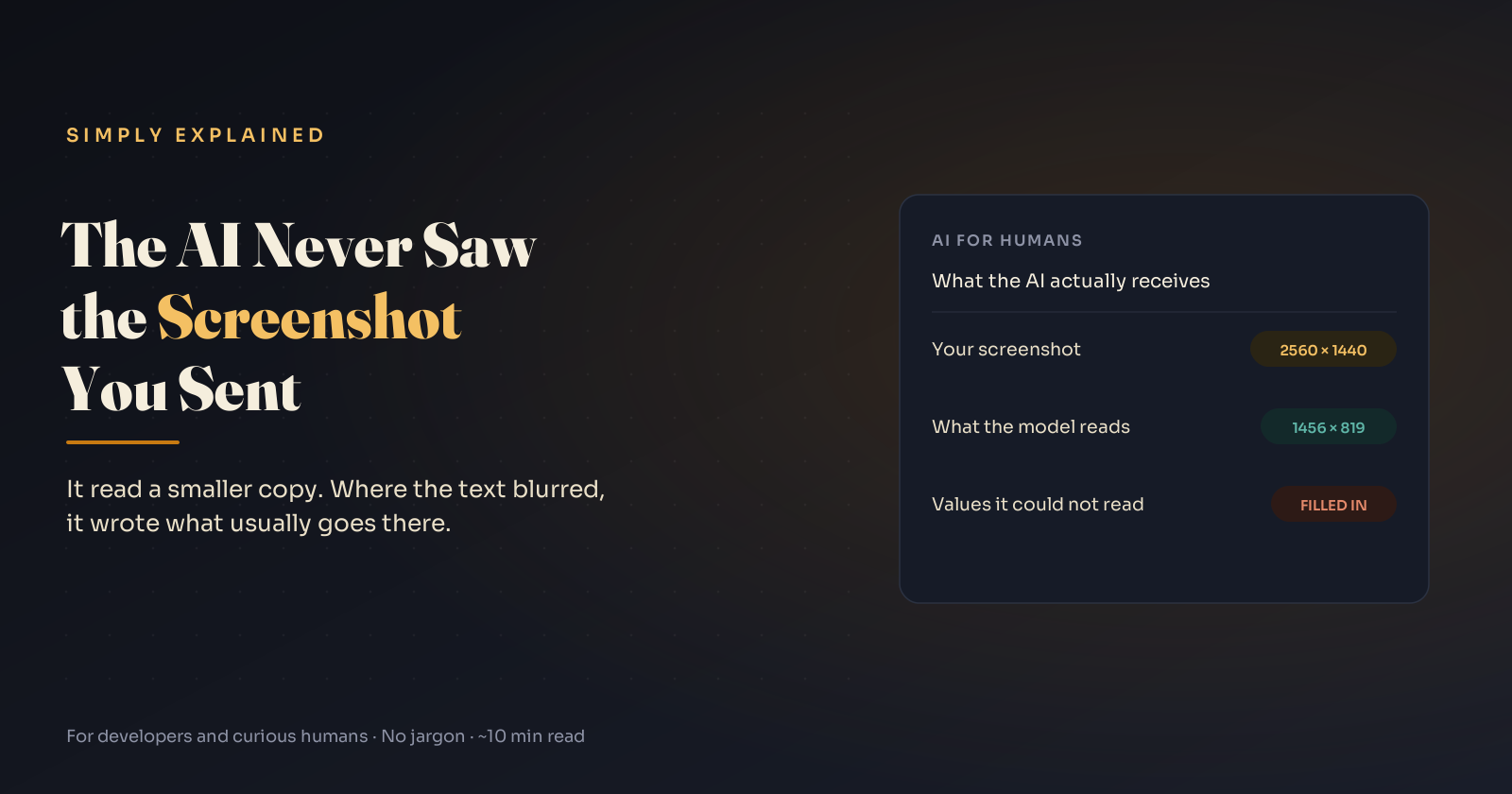
Paste a 1080p screenshot into a standard-tier Claude model. Then paste a 4K one. The model reads the same size image both times: about 1456 × 819 pixels.
That one fact explains most of the strange answers people get when they ask AI about a dashboard, an error dialog or a table. The model doesn't read your screenshot. It reads a resized copy that fits a fixed budget, and when text in that copy is too small to resolve, it doesn't say so. It writes what usually goes there.
This post covers the budget, a script that shows you exactly what the model receives, why the model can't flag what it lost, and a workflow that catches misreads in about ten seconds.
TL;DR
- Vision models split images into patches (tokens) and cap how many one image can use. Large screenshots get downscaled before the model reads anything.
- The cap is roughly fixed, so a bigger or denser screen means smaller text for the model, not more detail.
- Blurred text isn't treated as missing. It's treated as a hint, and the model completes it with a plausible value.
- Fix: paste text when you can, crop to the question, and ask for a transcription before any analysis.
The pixel budget, in numbers
Each provider publishes its own rule:
- Claude (standard tier, most models): at most 1,568 px on the long edge and 1,568 visual tokens, one per 28 × 28 px patch. Anthropic's high-resolution tier (its newest models) raises this to 2,576 px and 4,784 tokens.
- OpenAI (classic high detail, GPT-4o generation): fit inside a 2048 × 2048 square, then scale until the short side is 768 px. Recent OpenAI models add an
originaldetail level that can keep images up to 6,000 px. - Gemini 3: a
media_resolutionsetting controls the token budget per image. Google's docs note that higher resolution improves reading fine text, at the cost of tokens and latency.
Apply those rules to common full-screen captures:
| Full-screen capture | Claude standard tier | Claude high-res tier | OpenAI classic high detail |
|---|---|---|---|
| 1920 × 1080 | 1456 × 819 (76%) | 1920 × 1080 (100%) | 1365 × 768 (71%) |
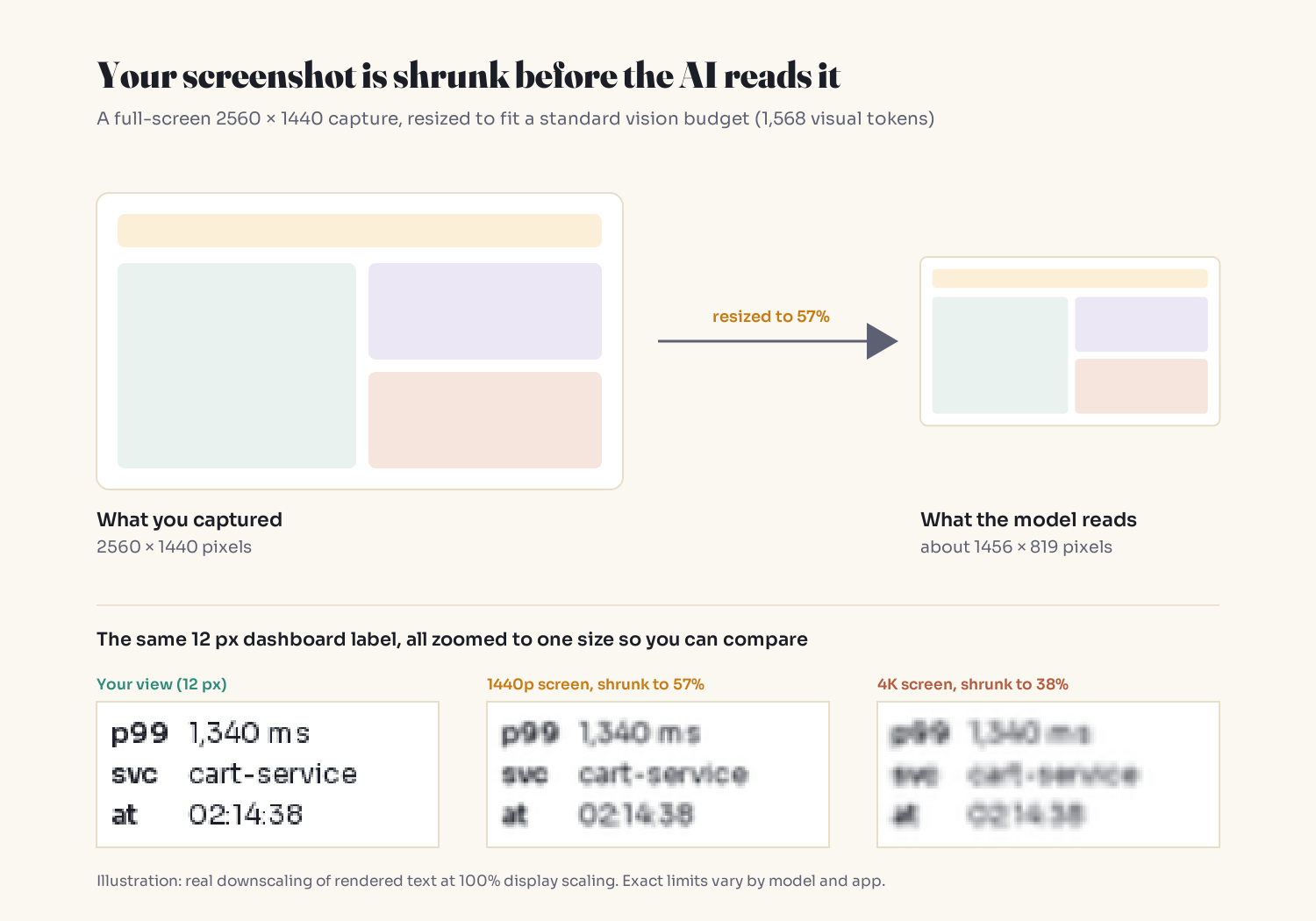
| 2560 × 1440 | 1456 × 819 (57%) | 2560 × 1440 (100%) | 1365 × 768 (53%) |
| 3840 × 2160 | 1456 × 819 (38%) | 2576 × 1449 (67%) | 1365 × 768 (36%) |
| 3024 × 1964 (14" MacBook Pro) | 1372 × 891 (45%) | 2380 × 1546 (79%) | 1183 × 768 (39%) |
Computed from each provider's published resize rules. Percentages are of the original width. Limits change, so check your model's current docs. Retina/HiDPI screens draw text with twice the pixels, which offsets some of the shrink.
On a 1440p monitor at 100% scaling, a 12 px dashboard label arrives about 7 px tall. On a 4K screen at 100%, about 4.5 px. With 28 px patches, each patch now covers several characters, and digit pairs like 3/8, 1/7 and 5/6 start to merge.
See what the model sees
Don't take the table's word for it. This script applies Claude's documented standard-tier rule (long edge and patch budget) and saves the resized image so you can open it:
import math
from PIL import Image

def claude_standard_size(w, h, max_edge=1568, max_tokens=1568):
    """Approximate the size a standard-tier Claude model reads (28x28 px patches)."""
    def fits(a, b):
        return max(a, b) <= max_edge and math.ceil(a / 28) * math.ceil(b / 28) <= max_tokens
    if fits(w, h):
        return w, h
    ratio = w / h
    for long_edge in range(min(max(w, h), max_edge), 0, -1):
        nw, nh = (long_edge, round(long_edge / ratio)) if w >= h else (round(long_edge * ratio), long_edge)
        if fits(nw, nh):
            return nw, nh

img = Image.open("screenshot.png")
size = claude_standard_size(*img.size)
print(f"{img.size} -> {size}")
img.resize(size, Image.LANCZOS).save("what_the_model_sees.png")
For a high-resolution-tier model, call it with max_edge=2576, max_tokens=4784. As a sanity check, it reproduces the example in Anthropic's docs: an A4 scan at 1075 × 1520 resizes to 924 × 1307.
Open what_the_model_sees.png at 100% zoom. If you can't read the value you're about to ask about, the model can't either. It just won't tell you.
One caveat: this shows what the model API does. The app in front of it (a chat UI, an IDE plugin, an agent) may compress or resize first. In April 2026 a developer reported a regression in an AI coding tool where pasted screenshots began arriving so downscaled that code in them was unreadable, with no warning in the conversation.
Why the model doesn't say "I can't read that"
A blurry "1,340" doesn't reach the model as a gap. It arrives as a strong hint: a four-digit shape with a comma, beside "ms" and "p99", inside something shaped like a latency panel. Completing that pattern is what language models are built to do.
Research backs this up:
- OCR hallucination (NeurIPS 2025). The KIE-HVQA benchmark tests models on degraded ID cards, invoices and prescriptions. The authors found models often fail to perceive that text has become unreadable, fall back on language patterns, and generate confident text for regions they can't see. Their fix was to train refusal behavior in.
- "Vision Language Models Are Blind" (ACCV 2024). Four leading models averaged about 56% on tasks like "do these two circles overlap?" The authors compared them to a person with myopia making educated guesses.
- CharXiv (NeurIPS 2024). On reasoning questions about real charts from research papers, GPT-4o scored 47.1% against 80.5% for humans.
Models have improved since these studies. The default behavior at the edge of legibility, a plausible answer instead of a flagged one, is the part that matters for your workflow.
What breaks first
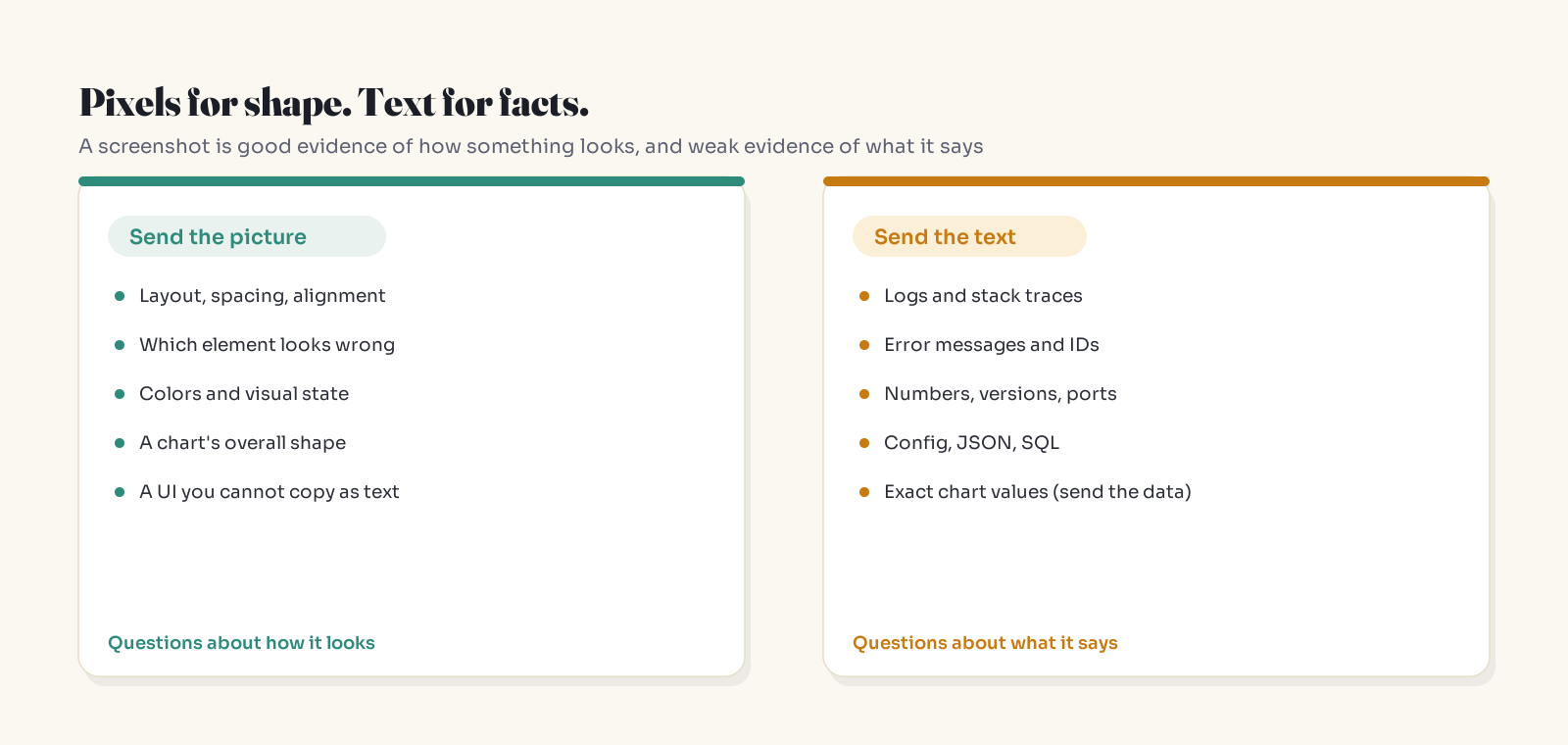
Layout, colors and the overall shape of a chart survive downscaling well. These don't:
- Small numbers. Latencies, counts, timestamps, line numbers.
- Look-alike characters.
0/O,1/l/I,rn/m. Prose has context to repair them. IDs, hashes, versions and config keys don't. - Exact chart values and line crossings. Use the data, not the picture.
- Text cut at the image edge. A truncated stack trace line tends to get completed, not reported as truncated.
- Dense tables. Values can be read correctly and still be assigned to the wrong row.
The pattern: the unusual value is the one most at risk. If a service usually runs at 180 ms and today it hit 1,340, a blurred reading drifts toward what latency numbers usually look like. It's the same pull that makes AI summaries delete the exception, and the same mechanism behind why AI confidently makes things up in plain text.
The model reads the typical parts of your screenshot well. You sent it because of the part that isn't typical.
The Read-Back Test
Most of the time, AI feels smartest where you can't check it. Screenshots are the exception: the original is on your screen. Use that.
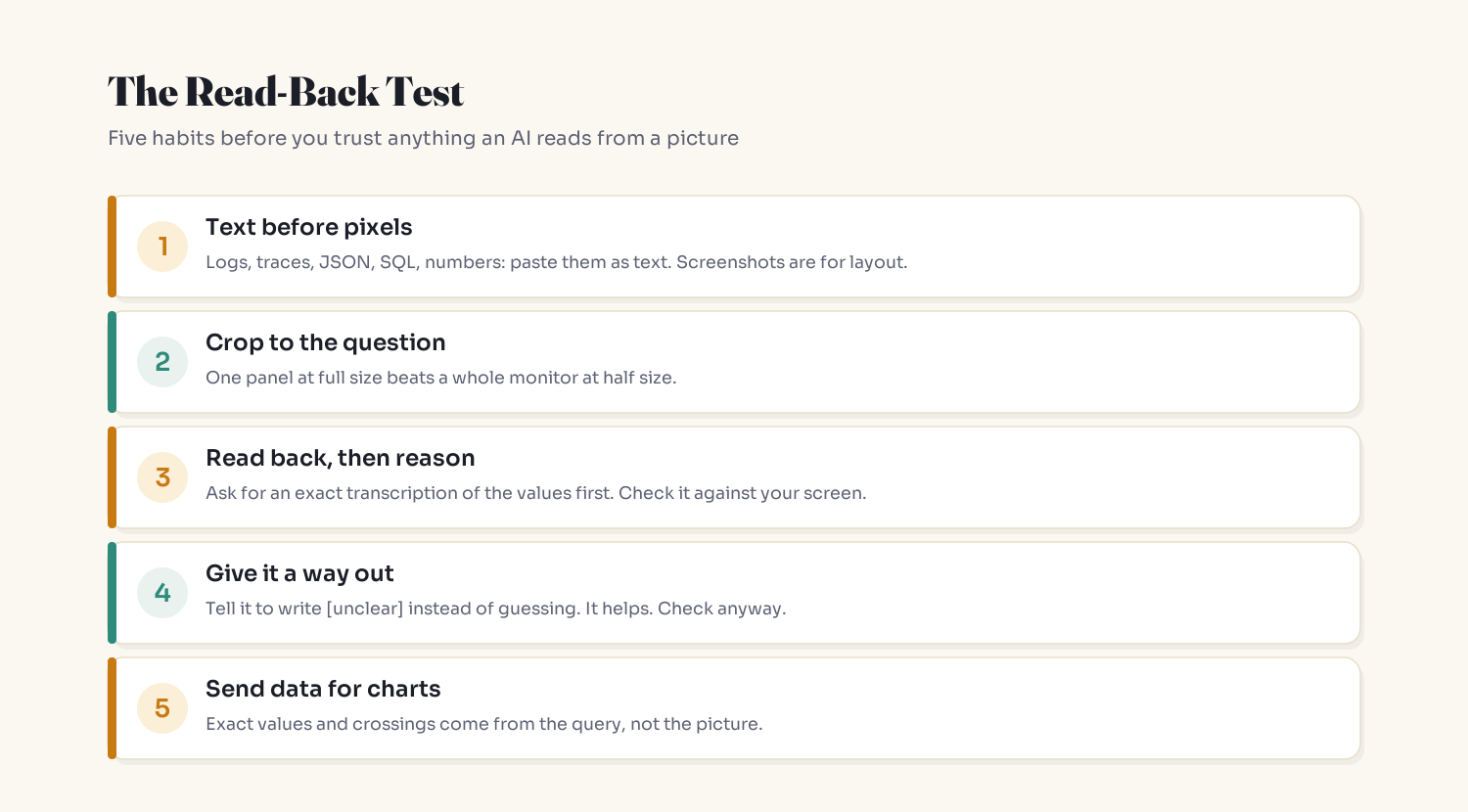
- Text before pixels. Logs, stack traces, error messages, JSON, SQL, config: paste them as text. Screenshots are for questions about how something looks.
- Crop to the question. One panel at native size beats a whole monitor at half size. Several crops beat one wide shot.
- Read back, then reason. Ask for a transcription first, check it, then ask your question.
- Give it a way out. Ask for
[unclear]instead of guesses. It helps, but the model often doesn't know a value was unclear, so step 3 still matters. - Send data for charts. Export the series or run the query when exact values matter.
A prompt you can reuse for step 3 and 4:
Step 1 only: transcribe exactly what this image shows for <the panel / table / dialog>.
List every value, label and timestamp as written.
If any character or value is not clearly legible, write [unclear] instead of guessing.
Do not interpret or summarize yet. I will confirm the transcription first.
If you ship features on vision models
- Preview the resized input with your provider's documented rule, as in the script above, before tuning prompts.
- Log width, height and detail setting per request. When accuracy drops, check for an input-size change first.
- Set
detail/media_resolutiondeliberately. Defaults favor cost and speed. - Crop known regions (an invoice total, a status bar) at native size, plus a small full view for context.
- Give every extracted field an "unreadable" option. A schema without one forces a guess, the same failure covered in Structured Outputs Still Hallucinate.
- Build a degraded test set (blurred, low-contrast, cropped, JPEG-compressed) with known answers. Track accuracy and the share of wrong answers that were flagged instead of invented.
Key Takeaways
- Your screenshot is resized to a fixed budget before the model reads it; on standard tiers, most full-screen captures land near 1,400–1,450 px wide.
- A bigger or denser screen shrinks text further for the model. Cropping is the fix.
- Blur is filled in, not flagged. The answer stays fluent even when the input wasn't legible.
- Small numbers, look-alike characters, chart values, cut-off lines and dense tables break first.
- The Read-Back Test (transcribe, check, then reason) turns an uncheckable answer into a ten-second comparison.
FAQ
Can ChatGPT, Claude or Gemini read text in screenshots accurately?
Often, when the text is large and clear relative to the image's final size. Accuracy drops when a large or dense screenshot is downscaled to fit the model's image budget, which shrinks small labels below what the model can reliably resolve.
Why does AI misread numbers in screenshots?
Vision models resize big images before reading them. Small digits blur together, and the model fills blurred regions with values that fit the surrounding pattern instead of reporting that it couldn't read them.
What resolution should screenshots be for AI?
Size matters less than density. Crop to the area you're asking about so it isn't downscaled. For standard-tier Claude models, images within 1,568 px on the long edge and the 1,568-token patch budget are read without resizing.
Is it better to paste text or a screenshot into AI?
Paste text whenever the content is text: logs, errors, code, config, numbers. Text arrives exactly; pixels arrive approximately. Use screenshots for layout, visual state and the overall shape of charts.
How do I stop AI from guessing unreadable text?
Ask for a transcription first and check it against the original, and instruct the model to write [unclear] for anything it can't read with certainty. The instruction helps but isn't reliable alone, which is why the transcription check matters.
Do newer AI models fix screenshot misreading?
They raise the resolution ceiling, which helps. But apps can still resize images before the model sees them, very large captures are still shrunk, and models still tend to produce plausible text at the edge of legibility. Checking what the model read remains necessary.
Related reading
- Why AI Feels Smarter About Topics You Don't Know
- Why AI Confidently Lies to You
- AI Can't Count the R's in 'Strawberry': Tokenization Explained
- Structured Outputs Still Hallucinate
- New here? Start Here: A Plain-English Map to Understanding AI
Get one of these in your inbox each week: subscribe to the Simply Explained newsletter.
The bottom line
A screenshot is what you see. The model sees a smaller copy, and where that copy blurs, it guesses without telling you. Paste text when you can, crop when you can't, and ask for the read-back before you trust the reasoning.
The question isn't whether the AI can see your screenshot. It's whether you checked what it saw.
Adam Jaber is a software engineer who writes Simply Explained: complex topics, made simple. No jargon, no hype.
About the author
- I'm a senior software engineer. I write Simply Explained, a plain-English breakdown of how AI and software actually work, and the quiet ways they break: AI fixes that hide bugs, agents that pick the wrong tool, health checks that take down healthy servers. One symptom, one analogy, one fix per piece. New here? Start with the pinned Start Here guide, or get one breakdown a week by email.
Comments
Join the discussionNo comments yet. Be the first to comment.